Smart IPTV Installation Guide
Overview
With the Smart IPTV app (SIPTV), you can easily play IPTV streams on almost all Smart TVs, regardless of the brand. Whether you have an LG, Samsung, or Sony, this application works perfectly. With Smart IPTV, you can watch your favorite Dutch IPTV channels directly on your television.
Smart IPTV is one of the most widely used applications for streaming IPTV channels on Smart TVs. The app offers a user-friendly interface and is regularly updated. All you need is a Smart TV and a stable internet connection.
The app also supports EPG, Picons, and channel groups, provided you upload an M3U file or URL that contains these options.
Important: the application does not include any channels itself. You must add your own IPTV Netherlands subscription through a provider such as Premium Dutch IPTV.
Important notes
Free trial period: upon first installation, you receive 7 days of free access. After that, you can activate the app via an in-app payment of €5.49 or through the official portal: siptv.eu/activation.
No channels included: Smart IPTV does not provide any content (such as TV channels or movies). You need a valid IPTV Netherlands subscription, for example through Premium Smartvpro.
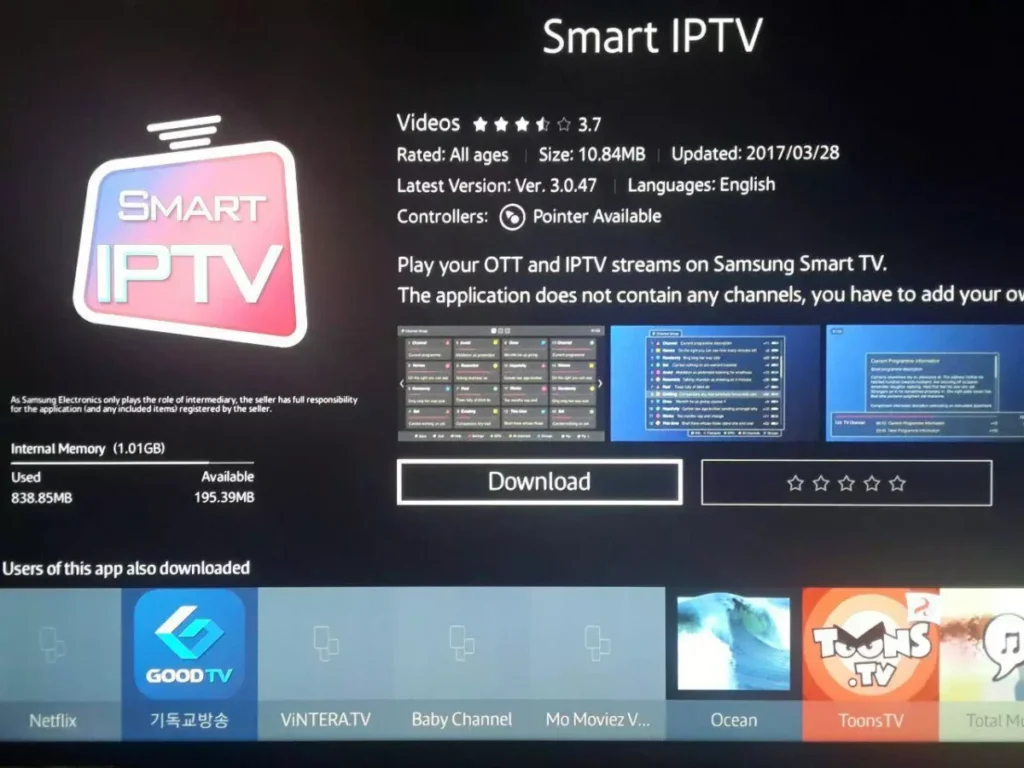
Step 1: Download Smart IPTV
Download the Smart IPTV app from your television’s official app store.
Step 2: Find your Smart IPTV MAC address
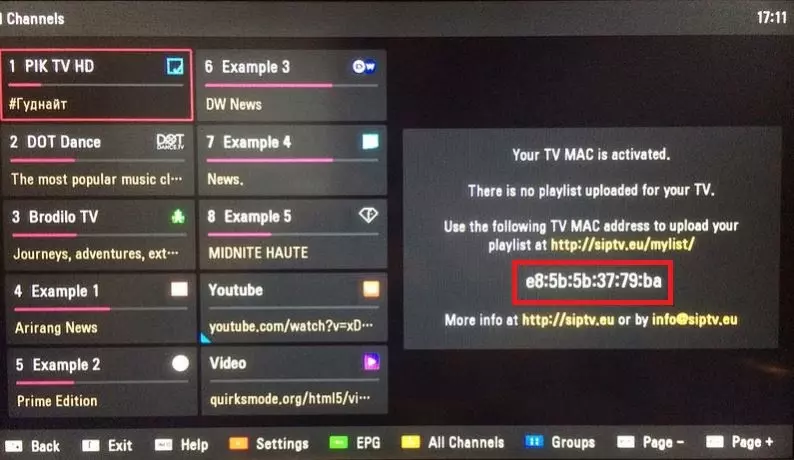
After installation, open the app. The MAC address of your Smart TV will appear on the screen. You will need this for activation.
Step 3: Install IPTV subscription on Smart IPTV
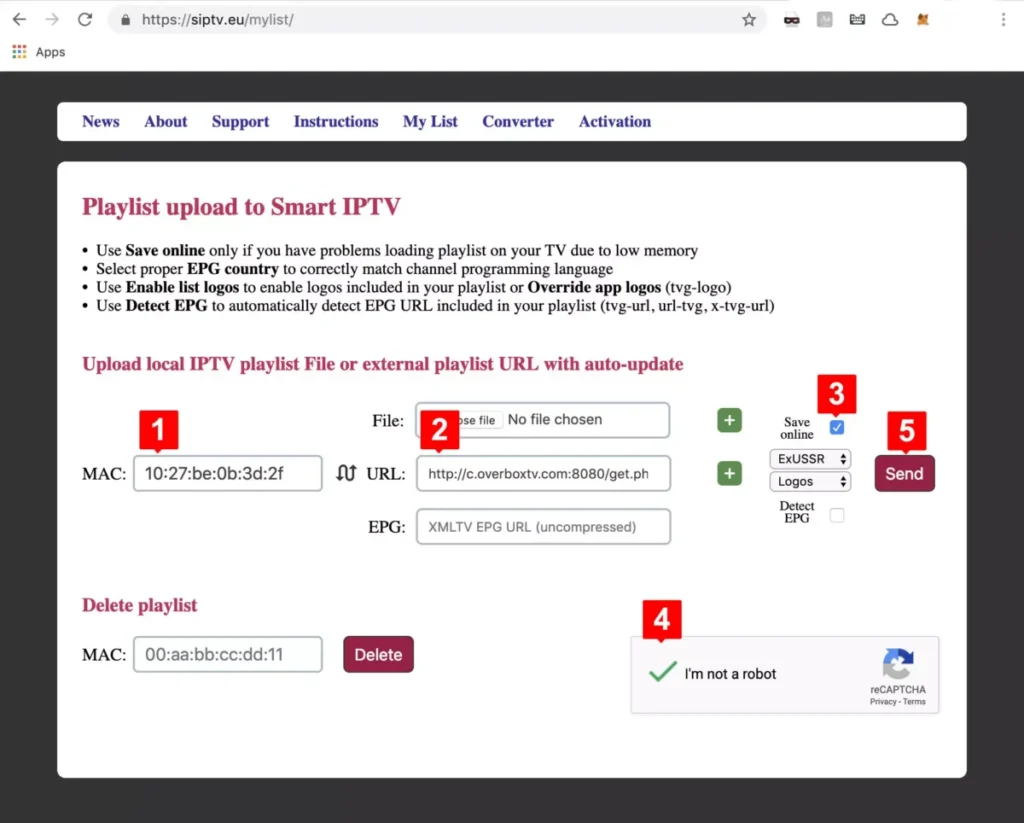
Go to the portal: siptv.eu/mylist via your internet browser.
Fill in your TV MAC address in the field MAC.
Enter the M3U link that you received with your Premium Dutch IPTV subscription.
Check Save online. This is useful if you have an older TV with less RAM, since M3U lists are often heavy.
Activate the captcha and click Send.
You can now enjoy IPTV Netherlands on your Smart TV with Smart IPTV.
Frequently asked questions (FAQ)
I can’t find my MAC address?
Go to the settings of the Smart IPTV app (at the bottom you will see a guide bar, usually accessible via the red button). There you will find your MAC ID.
My channel list is not loading or is displaying an error message?
This often happens with very large M3U lists containing thousands of channels and VOD.
Solution: reduce your playlist size and upload it again. With your IPTV dashboard, you can remove unwanted channels and VOD bouquets.
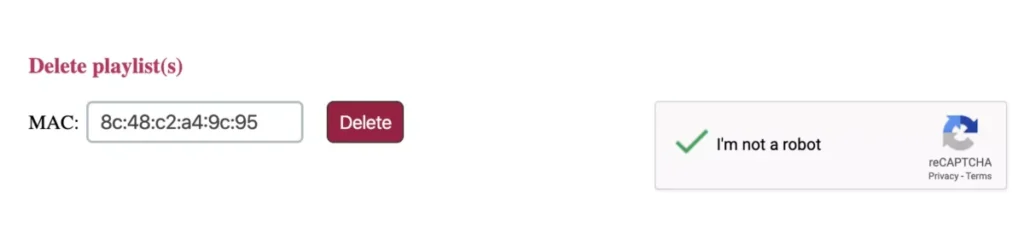
How do I delete an expired listing?
Go to siptv.eu/mylist, enter your MAC address in Delete, activate the captcha (I am not a robot), and click Delete.