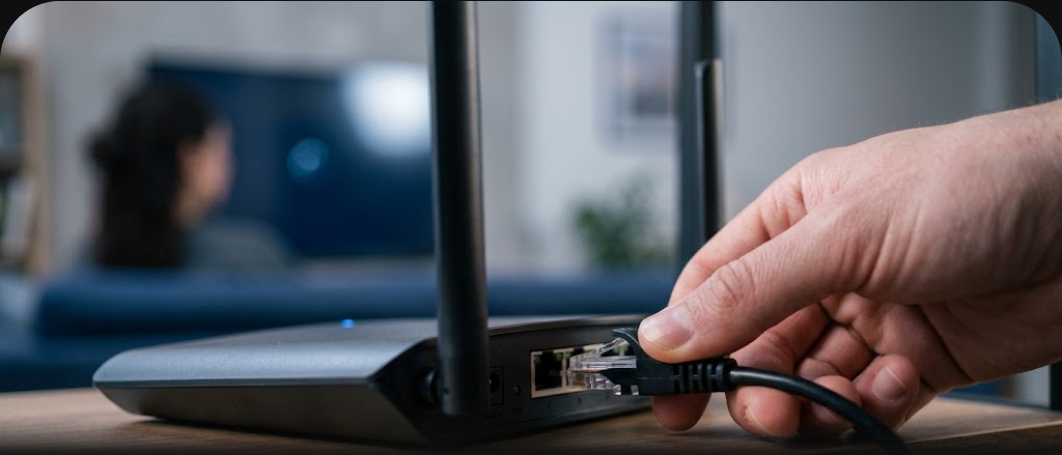
You hit play, the picture loads for two seconds, then the spinning circle shows up right as the match kicks off or the episode gets good. IPTV buffering is one of those problems that feels random — smooth one night, unwatchable the next — but it almost never actually is. There’s a specific cause behind every stall, and once you know where to look, fixing it usually takes minutes, not a full afternoon of guessing.
This guide walks through the real causes of IPTV buffering in the order they’re worth checking, so you fix the actual source of the IPTV buffering instead of guessing, starting with the fastest fixes and working toward the ones that take a bit more effort. Some of this will apply no matter which service or app you use; a few sections are specific to certain devices, so feel free to jump to the one that matches your setup.
Why Does IPTV Buffering Happen in the First Place?
IPTV buffering happens when your device can’t receive video data fast enough to keep playing it smoothly, so it pauses to let more data arrive. That’s the whole mechanism. Everything else in this guide is really just a list of places where that data can slow down or get interrupted on its way from a server to your screen.
It’s Rarely Just “Bad Wi-Fi”
Wi-Fi gets blamed first because it’s the most visible part of the chain, but in practice it’s only one of several points of failure. A weak Wi-Fi signal absolutely causes buffering, but so does an internet plan that’s too slow for the number of devices using it, a router that’s overwhelmed, a DNS server that’s slow to resolve, an overloaded IPTV server on the provider’s end, or a player app that isn’t buffering enough data ahead of playback. Treating every IPTV buffering issue as a “Wi-Fi problem” means you fix the wrong thing half the time and the issue comes right back.
The Four Places IPTV Buffering Actually Comes From
It helps to think of the video’s journey in four stages, because each one fails differently:
- The source — the IPTV provider’s server has to encode and deliver the stream fast enough for every connected viewer at once. If it’s overloaded (common during major live sports events), IPTV buffering hits everyone watching that channel, regardless of their own internet connection.
- Your internet connection — the link between your home and your ISP. This is where raw speed, data caps, and ISP throttling live.
- Your local network — your router, Wi-Fi signal, and how many other devices are competing for bandwidth right now.
- Your device and app — the box, stick, TV, or phone running the IPTV player, and how that specific app is configured to buffer and decode the stream.
Once you know which stage is actually causing the problem, IPTV buffering is usually easy to fix once you find the right stage. The steps below are ordered so you check the easiest, most common causes first.
Step 1: Check Your Actual Internet Speed to Prevent IPTV Buffering
The plan you pay for and the speed you actually get are often two different numbers, especially during evening peak hours when everyone on your street is streaming at once. Run a real speed test — from a device connected directly to your router if possible — and compare it against what IPTV realistically needs per stream.
| Stream Quality | Recommended Minimum Speed (per stream) | Notes |
|---|---|---|
| SD (standard definition) | 3–5 Mbps | Rarely used for modern IPTV, but useful as a baseline |
| HD (1080p) | 10–15 Mbps | Comfortable minimum for stable HD playback |
| 4K | 25+ Mbps | Higher bitrate channels may need more; leave headroom |
| 8K | 50+ Mbps | Uncommon in practice, but some premium channels broadcast at this tier |
Two details trip people up here. First, these numbers are per stream, not per household — if two people are watching different channels on different devices at the same time, you need roughly double the bandwidth. Second, other traffic on your network counts too: a large cloud backup running in the background, a game downloading on a console, or a security camera uploading video can quietly eat the bandwidth your IPTV stream needed.
If your measured speed is close to or below the minimum for the quality you’re trying to watch, that’s very likely your answer — no router tweak or app setting will fix the most common cause of IPTV buffering: a genuine bandwidth shortage. For a full breakdown of plan tiers and what to expect at each price point, our IPTV subscription pricing guide covers what different service levels typically include.

Step 2: Wired vs Wi-Fi — Why Ethernet Fixes IPTV Buffering Instantly
If your streaming device sits within reach of your router, running a single Ethernet cable is the single highest-impact fix for IPTV buffering in this entire guide. Wi-Fi is a shared, half-duplex medium — every device on the same band takes turns, and interference from neighboring networks, microwaves, and even thick walls degrades the signal in ways a speed test taken right next to the router won’t reveal.
A few practical notes if Ethernet isn’t an option:
- Use the 5GHz band instead of 2.4GHz when your device supports it — it’s faster and less crowded, though it has shorter range.
- Move the router (or a Wi-Fi extender/mesh node) closer to the TV rather than trying to boost the TV’s antenna.
- Powerline adapters, which send network data over your home’s existing electrical wiring, are a solid middle ground when running a cable isn’t practical.
- If you’re on a mesh Wi-Fi system, make sure your streaming device is actually connecting to the nearest node — some mesh systems are slow to hand devices off between nodes.

Step 3: Restart the Right Things, in the Right Order to Fix IPTV Buffering
“Have you tried turning it off and on again” is a cliché because it works — but the order matters more than people realize. Restarting your streaming device alone often does nothing if the actual bottleneck is your router holding a stale connection.
- Unplug your modem and router, wait 30 seconds, plug the modem back in first, then the router once it’s fully booted.
- Restart your streaming device (Firestick, Android box, Smart TV, etc.).
- Fully close the IPTV app rather than just backgrounding it, then reopen it.
- If the app has a cache-clearing option in its settings, use it — a bloated cache can slow down channel loading and playback on some players.
This sequence resolves a surprising number of IPTV buffering complaints on its own, because it clears out stale DHCP leases, DNS caches, and half-open connections that build up over days or weeks of a router staying on.
Step 4: Update or Switch Your DNS Settings to Reduce IPTV Buffering
DNS is the step people skip, but it matters more for streaming than most other browsing. Every time your app connects to a server, it has to resolve a domain name to an IP address first — and if your ISP’s default DNS servers are slow or overloaded, that adds delay before IPTV buffering even has a chance to start on the actual video.
Switching to a fast, reliable public DNS provider is free and takes a couple of minutes:
- Cloudflare: 1.1.1.1 and 1.0.0.1
- Google: 8.8.8.8 and 8.8.4.4
You can set this at the router level (which applies it to every device on your network at once) or on the individual streaming device if your router doesn’t give you that option. Router-level changes are usually under a section labeled “WAN,” “Internet,” or “DNS” in the admin panel; on most streaming boxes and Smart TVs it’s under the network/Wi-Fi settings for the specific connection.
Step 5: VPN and IPTV — When It Helps and When It Hurts
This one is genuinely two-sided, and a lot of guides oversimplify it in one direction or the other.
When a VPN helps: some ISPs use deep packet inspection to identify and deliberately slow down streaming-like traffic during peak hours, a practice generally referred to as throttling. Since a VPN encrypts your traffic, your ISP can no longer identify it as a video stream to selectively throttle it, which occasionally resolves buffering that has nothing to do with your actual bandwidth.
When a VPN hurts: a VPN adds an extra hop between you and the IPTV server, and if that VPN server is far away, overloaded, or using an inefficient protocol, it can easily cause buffering rather than fix it. A slow or badly-routed VPN connection is one of the most common self-inflicted IPTV buffering problems.
If you want to test whether a VPN helps in your specific situation:
- Choose a server location as close to you as possible — proximity usually matters more than which country you pick.
- Prefer VPN apps that support the WireGuard protocol, which is noticeably faster than older protocols like OpenVPN for this kind of use case.
- Test with the VPN both on and off during the same viewing session to isolate whether it’s actually causing IPTV buffering or fixing it.
If you’re not already using a VPN and your IPTV buffering only happens on specific channels or at specific times of day (rather than constantly), it’s more likely to be a bandwidth or server-load issue than something a VPN will fix — worth ruling out Steps 1 and 3 first.
Step 6: Device-Specific Fixes for IPTV Buffering

Firestick and Fire TV
IPTV buffering on a Firestick is very often a RAM problem, not a network problem. Amazon’s Fire TV devices are affordable but have limited RAM compared to dedicated Android boxes, which means IPTV apps can struggle if too many background apps are running. Go to Settings → Applications → Manage Installed Applications and force-close anything you’re not actively using. It’s also worth checking Settings → My Fire TV → About for a pending software update, since Fire OS updates occasionally include real streaming performance fixes. If you’re setting one up from scratch or want a refresher on getting an app installed cleanly, our Firestick installation guide covers the setup process in detail.
Android TV Boxes and Android Phones/Tablets
IPTV buffering on Android boxes usually comes down to hardware age rather than your connection. Generic Android boxes vary enormously in hardware quality, and a cheap box with an outdated processor will buffer on 4K content that a mid-range box handles fine. If you’re on an older or budget box, try dropping to a lower quality stream where the option exists, and make sure the box has enough free storage — some Android systems slow down significantly when storage runs low, which affects app performance broadly, not just IPTV.
Smart TVs (Samsung, LG, and Others)
IPTV buffering on Smart TVs is frequently a processing-power problem rather than a streaming problem. Built-in Smart TV operating systems are typically the most resource-constrained option, since they’re sharing processing power with the entire TV interface. If you’re using a dedicated Smart IPTV-style app, make sure it’s updated to the latest version through your TV’s app store, and consider using an external streaming device (Firestick or Android box) instead of the TV’s built-in apps if buffering persists — external devices are generally more powerful than the chip built into the TV itself. Our Smart IPTV installation guide walks through setup on supported TV models.
MAG Boxes and Enigma2 Devices
IPTV buffering on MAG and Enigma2 boxes is often tied to portal configuration rather than raw speed. These are older but still widely used set-top box platforms, and they’re more sensitive to server portal configuration than app-based players. If buffering is specific to a MAG or Enigma2 box while other devices on the same network stream fine, double-check that the portal URL is entered exactly as provided and that the box’s firmware is current — outdated firmware on these platforms is a common, overlooked cause of playback issues.
Step 7: Choose a More Stable IPTV Player App
Not all IPTV player apps handle buffering the same way, even when they’re pulling from the exact same source. A well-built player intelligently pre-buffers more data ahead of playback and recovers gracefully from brief network hiccups — exactly the behavior that prevents IPTV buffering; a poorly optimized one stalls at the first dropped packet.
Two settings worth adjusting inside almost any player app:
- Buffer size — the setting most directly tied to IPTV buffering. Most apps let you increase how many seconds of video are loaded ahead of what you’re currently watching. A larger buffer means more resilience against short network interruptions, at the cost of a slightly longer wait when you first change channels.
- Hardware vs. software decoding — if your device supports hardware decoding for the format you’re streaming, enabling it usually reduces buffering caused by the device struggling to decode video fast enough, especially on older hardware.
If you haven’t tried a different player app, apps like TiviMate, IPTV Smarters Pro, and IBO Player Pro are widely used and actively maintained, and switching between them costs nothing but a few minutes of setup. Our installation guide hub has step-by-step setup instructions for each major player, including TiviMate and IPTV Smarters Pro, if you want to compare how they perform on your specific device.
Step 8: Router-Level Optimizations That Actually Cut IPTV Buffering
A few router settings genuinely move the needle for streaming, beyond the basic restart-and-reposition advice:
- Enable Quality of Service (QoS) if your router supports it, and prioritize the streaming device’s traffic. This matters most in households where multiple people are online at once and IPTV buffering tends to spike in the evening.
- Keep firmware updated. Router manufacturers regularly patch performance and stability bugs, and an outdated router is a surprisingly common, invisible cause of intermittent buffering.
- Turn off band steering if you’re having trouble getting a device to stay on 5GHz — some routers automatically bounce devices between bands in a way that briefly interrupts the connection.
- Count your connected devices. Older routers can struggle to manage many simultaneous connections cleanly. If your household has 20+ connected smart devices, a router refresh may help more than any software tweak.
When It’s Not You: Recognizing a Server-Side or Provider Issue
Everything above assumes the IPTV buffering problem is on your end, which it usually is — but not always. A few signs point toward a provider-side or server-side issue instead:
- IPTV buffering happens specifically during high-demand events (major sports finals, big premieres) but not during normal viewing — a sign of shared server capacity being stretched thin.
- Multiple, unrelated channels all buffer at the same time, while everything else on your internet (browsing, other streaming apps) works normally.
- Buffering clears up immediately if the provider offers an alternate server or backup connection URL, without you changing anything else.
This is one reason server infrastructure quality is worth paying attention to when choosing a provider in the first place — a service running well-provisioned servers across multiple regions, with enough headroom for peak-time demand, will cause far less IPTV buffering under load than one running lean, oversold infrastructure. If constant buffering on your current service turns out to be a pattern rather than a one-off, it may be worth comparing what a different provider’s infrastructure actually looks like; our IPTV subscription guide breaks down what to check before switching, and the full channel list shows the regional server coverage SmartVPro offers if you want a reference point.
Quick IPTV Buffering Diagnostic Checklist
| Symptom | Most Likely Cause | Try This First |
|---|---|---|
| Buffers on every channel, all the time | Internet speed shortfall | Run a speed test (Step 1) |
| Buffers only on Wi-Fi, fine on wired test | Local Wi-Fi signal/congestion | Switch to Ethernet or 5GHz (Step 2) |
| Buffers only during big live events | Provider server load | See “When It’s Not You” section |
| Buffers only on one specific device | Device hardware or app issue | Device-specific fixes (Step 6) |
| Fine at first, degrades after 20–30 minutes | Overheating device or app memory leak | Restart device; check ventilation |
| Buffers worse with VPN on | Slow/distant VPN server | Try a closer server or disable VPN (Step 5) |
| Channel takes long to load, then plays smoothly | Slow DNS resolution | Switch DNS provider (Step 4) |
Preventing IPTV Buffering Before It Starts
Fixing buffering after the fact is useful, but a few habits keep it from coming back:
- Run a quick speed test monthly to stay ahead of IPTV buffering, especially if your household has added streaming devices, smart cameras, or a new work-from-home setup since you last checked.
- Keep your router and streaming devices’ firmware/software updated rather than ignoring update prompts.
- If you regularly watch live sports or major events, expect higher demand across the board and consider testing your setup a day ahead rather than troubleshooting live during kickoff.
- Periodically clear your IPTV app’s cache, especially on devices with limited storage.
None of this guarantees a buffer-free stream forever — network conditions change, and even the best-provisioned server can see a spike during an unusually large live event — but working through these steps in order resolves the overwhelming majority of everyday IPTV buffering complaints.
Frequently Asked Questions
Why does my IPTV keep buffering even though my internet is fast?
IPTV buffering: a fast overall internet plan doesn’t guarantee a fast connection at the exact moment you’re streaming — other devices on your network, Wi-Fi congestion, or a slow DNS server can all cause buffering even on a high-speed plan. Provider-side server load during peak times can also cause buffering regardless of your own connection speed.
What internet speed do I need for IPTV without buffering?
IPTV buffering: plan for at least 10–15 Mbps per HD stream and 25+ Mbps per 4K stream, with extra headroom if multiple people in your household stream at once. See the table in Step 1 for a full breakdown by quality level.
Does a VPN fix or cause IPTV buffering?
IPTV buffering: it can do either. A VPN can help if your ISP is throttling streaming traffic, but a slow or distant VPN server often causes more buffering than it solves. Test with the VPN on and off to see which applies to your setup.
Is IPTV buffering worse on Wi-Fi than Ethernet?
IPTV buffering: generally yes. Wi-Fi is shared and subject to interference and congestion in ways a wired Ethernet connection isn’t. If your streaming device is near your router, a wired connection is usually the single most effective fix available.
Why does IPTV only buffer during live sports events?
IPTV buffering: this is typically a server-side capacity issue rather than a problem with your connection — demand spikes sharply during major live events, and even well-provisioned infrastructure can see brief slowdowns under unusually heavy simultaneous load.
Should I restart my router every time IPTV buffers?
IPTV buffering: not every time, but if buffering has been building up gradually over days, a restart clears stale connections and cached data that can accumulate. If restarting fixes it temporarily but the problem returns quickly, look at internet speed, Wi-Fi setup, or router settings for a longer-term fix.
Can changing my DNS really reduce buffering?
IPTV buffering: it won’t fix a bandwidth shortage, but it can meaningfully reduce delays in how quickly channels start playing, especially if your ISP’s default DNS servers are slow. It’s a free, low-effort change worth testing.
Does increasing the buffer size in my player app help?
IPTV buffering: yes, within reason. A larger buffer gives your app more of a cushion to absorb brief network interruptions without visibly stalling, though it does mean a slightly longer wait when you first switch channels.
Conclusion
IPTV buffering almost always traces back to one of a handful of causes — internet speed, local network congestion, a slow DNS setup, VPN overhead, device limitations, app configuration, or genuine server-side load on the provider’s end. Working through these in order, rather than guessing at random, turns a frustrating and seemingly unpredictable problem into a short, solvable checklist. If you’ve gone through every step here and buffering is still a constant, daily pattern rather than an occasional hiccup, that’s usually a sign the IPTV buffering issue sits on the provider’s infrastructure rather than your setup — at which point comparing what a different service actually offers, starting with our IPTV subscription guide, is a reasonable next step.