
Best IPTV Player Apps by Device (2026 Guide)
Watching USA IPTV? The right player depends on your device. Pick your device to see which apps work, where to get them, and how to log in.
Short answer
Android devices (Android TV, Google TV, Firestick on Fire OS) run Android apps like TiviMate or XCIPTV. Samsung, LG and Apple need apps made for their own system, like Smart IPTV, IBO Player or IPTVX.
Good to know
These are third-party media players. SmartVPro does not own or control them. They show content only after you add your own playlist or login. Device support changes, so check the store listing before you install.
Which IPTV players work on which device
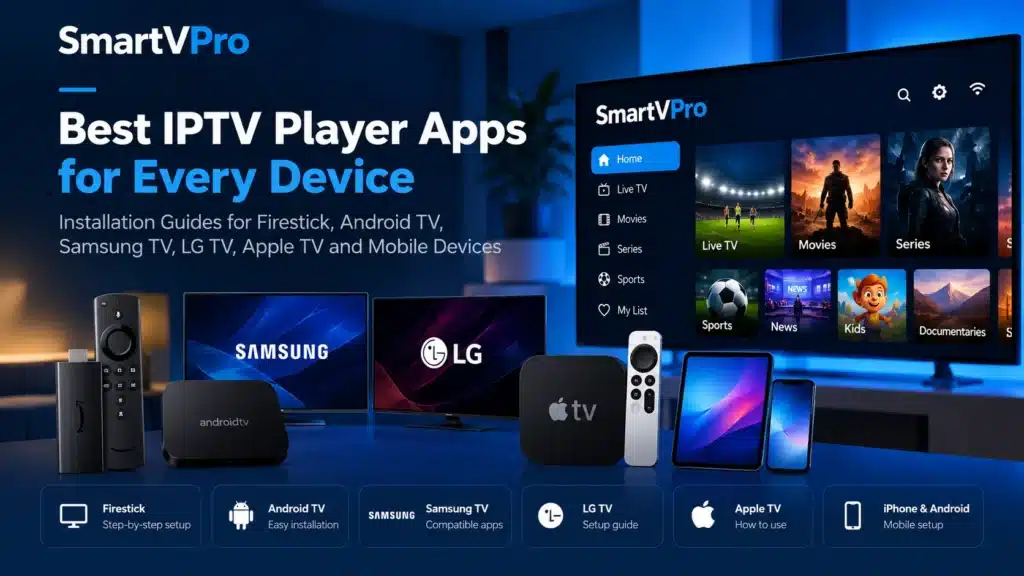
The full picture in one table: use it to pick a player for your USA IPTV subscription before you install anything. Details for each device are in the cards below.
| App | Firestick | Android TV | Samsung | LG | Apple TV | iPhone / iPad | Android phone |
|---|---|---|---|---|---|---|---|
| TiviMate | Sideload | Yes | — | — | — | — | — |
| XCIPTV | Sideload | Yes | — | — | — | — | Yes |
| Smart IPTV | Sideload | Yes | 2022+ | webOS 3+ | — | — | — |
| IBO Player | — | Yes | Yes | Yes | — | — | — |
| IPTVX | — | — | — | — | Yes | Yes | — |
| Smarters IPTV Player | — | — | — | — | Yes | Yes | — |
Yes Listed as supportedSideload Install with the Downloader app; may not work on every model— Not listed
Samsung / LG Smart TV: which player apps you can install depends on your TV’s app store and model (check the Tizen or webOS version in the TV’s settings). Some apps, such as Smart IPTV and IBO Player, are activated through the developer’s website. See how MAC activation works.
IPTV player setup by device
Where to download each app and how to log in, device by device.
Amazon Firestick
Fire OS
Where to get it
Smart IPTV: sideload only. The developer’s site (siptv.app) gives a manual install with the Downloader app, not an Amazon Appstore listing. Android apps: the Downloader app, with “Apps from Unknown Sources” turned on.
How to log in
Smart IPTV: upload your playlist on the developer’s site using the TV’s MAC address. Android apps: Xtream Codes login or M3U URL.
Watch out: Smart IPTV’s developer gives Fire TV install instructions by sideloading (Fire OS). No official Vega OS version or Vega OS install method is listed by the developer, so check before buying a Vega OS model such as the Fire TV Stick 4K Select. TiviMate targets Android TV, so Fire TV isn’t guaranteed.
Android TV / Google TV
Android
Where to get it
Google Play: TiviMate, XCIPTV. Developer websites: Smart IPTV, IBO Player.
How to log in
TiviMate: your own playlist. XCIPTV: Xtream Codes API or M3U URL. Smart IPTV: MAC-address upload.
Tip: TiviMate is built for the remote control, not touchscreens.
Samsung Smart TV
Tizen
Where to get it
Developer websites: siptv.app and iboplayer.com.
How to log in
Smart IPTV: MAC-address playlist upload. IBO Player: follow the developer’s activation steps.
Watch out: older Samsung models may not be supported by Smart IPTV.
LG Smart TV
webOS
Where to get it
Developer websites: siptv.app and iboplayer.com.
How to log in
Smart IPTV: MAC-address playlist upload. IBO Player: follow the developer’s activation steps.
Tip: check your webOS version in the TV’s settings before buying an activation.
Apple TV
tvOS
Where to get it
Apple App Store.
How to log in
IPTVX: Xtream API or M3U. Smarters IPTV Player: M3U playlist.
Tip: both are free to download, with in-app purchases.
iPhone / iPad
iOS / iPadOS
Where to get it
Apple App Store.
How to log in
IPTVX: Xtream API or M3U. Smarters IPTV Player: M3U playlist.
Tip: same apps as Apple TV. Purchases are made inside the app.
Android phone / tablet
Android
Where to get it
Google Play.
How to log in
Xtream Codes API or M3U URL.
Watch out: TiviMate is not made for phones or tablets.
Samsung and LG: how MAC activation works
Some Smart TV apps, such as Smart IPTV and IBO Player, identify your TV by its MAC address or device ID. Open the app, note the MAC/ID it shows, then enter it on the developer’s official site (siptv.app or iboplayer.com) to activate the app or add your playlist. The MAC only identifies your TV to the player app. It is not your subscription username or password. Never post your MAC publicly, and never use another person’s MAC.
“IPTV code” can mean two different things: an app activation or MAC code (it identifies your TV to the player app), or your provider login (Xtream Codes username, password and server URL, or an M3U link). They are not the same thing, so check which one is being asked for.
The apps, in brief
Who makes each app, what it costs, which login it accepts for a USA IPTV service, and where to find the setup guide.
TiviMate
By Armobsoft FZE, on Google Play. Built for Android TV and the remote, not for touch screens. Premium unlocks features only — no channels included.
TV guide: TiviMate shows a TV guide (EPG) grid, using guide data linked to your playlist — for example an EPG link from your provider. If the guide is empty, see fixing a missing TV guide (EPG).
TiviMate setup guide →XCIPTV Player
By OTTRUN (Nath Network & Telecom Inc.), on Google Play for Android TV, phones and tablets. Works with Xtream Codes logins and M3U URLs.
View on Google Play →Smart IPTV
For LG (webOS 3.0+), Samsung (Tizen 6.5+, 2022 and newer), Android, Google TV and Fire TV. No channels included. One-time activation: 5.49 EUR per device.
Smart IPTV setup guide →IBO Player
Listed for Android, Apple, Samsung, LG, Roku and Windows. 7-day trial, then a licence must be bought.
IBO Player Pro setup guide →IPTVX
By Bending X – FZE for iPhone, iPad, Apple TV and Mac. Free with in-app purchases. Supports Xtream API and M3U/M3U8. Provides no content.
View on the App Store →Smarters IPTV Player
By SmartersPlayer LLC for iPhone, iPad, Apple TV and Apple-silicon Macs. Loads M3U playlists. Free, with an in-app activation.
Android version: IPTV Smarters Pro guide →Xtream Codes vs M3U: which login should you use?
Your USA IPTV provider gives you one of two login types. Most players accept both, but they behave a little differently.
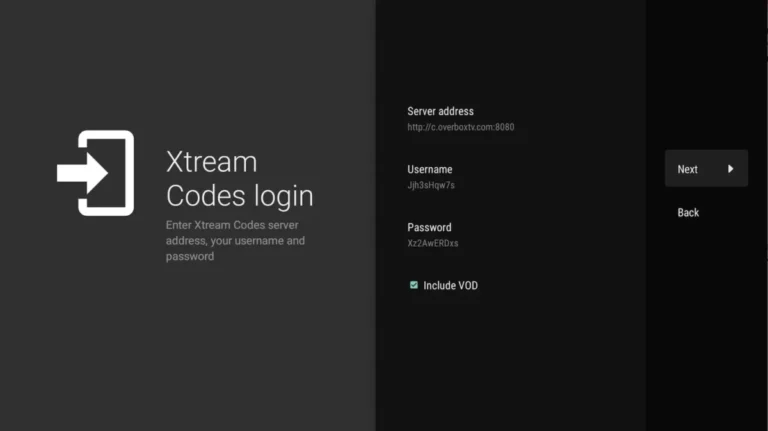
Xtream Codes login
Three details: a server URL, a username and a password.
- Most players sort live TV, movies and series into categories for you.
- The TV guide (EPG) usually loads with it, without a separate link.
- Works in TiviMate, XCIPTV and IPTVX.
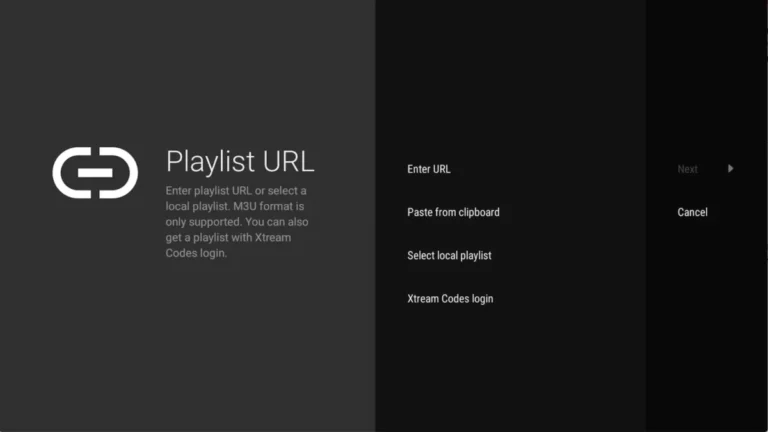
M3U playlist URL
One long link that contains your full channel list.
- Accepted by almost every player, including Smarters IPTV Player.
- Some players need a separate EPG link for the TV guide.
- Smart IPTV is different: you upload the playlist on siptv.app using your TV’s MAC address.
Where to find your login details: your IPTV provider sends them, usually by email or in your account area after you subscribe. Enter the server URL, username and password, or the M3U link, exactly as sent. Never use login details shared online or taken from someone else’s account. SmartVPro, for example, sends login details by email after an order.
Which one to pick: use whichever login type your player supports and your provider supplies. If both are available, Xtream Codes usually needs less setup because categories and the TV guide often load with it. Use M3U when the player only supports playlists.
How to choose the right IPTV player
Five checks before you install or pay for a player for your USA IPTV service.
- Your device’s system. Fire OS and Android TV run Android apps. Samsung (Tizen), LG (webOS) and Apple devices need apps built for them. Newer Fire TV models run Vega OS: check the app developer’s official instructions first. Smart IPTV’s developer, for example, lists no Vega OS version or install method.
- The login it accepts. Match the player to what your provider sends: an Xtream Codes login, an M3U URL, or a MAC-address upload.
- How you pay for it. Smart IPTV charges a one-time 5.49 EUR activation per device, IBO Player needs a licence after a 7-day trial, TiviMate sells a premium upgrade, and IPTVX and Smarters IPTV Player use in-app purchases. None of them include channels.
- Remote or touchscreen. TiviMate is designed for a TV remote. On phones and tablets, XCIPTV is the better fit.
- Where it comes from. Use the official app store or the developer’s own website. Sideloading on a Firestick works on Fire OS models, but behavior isn’t guaranteed.
How to Set Up IPTV on a Player in 3 Steps
These steps work with most IPTV providers and player apps. SmartVPro is used as an example.
- 1Install a compatible playerUse the table above to pick a player that works on your device. Install it from the official app store or the developer’s website.
- 2Get your login detailsYour IPTV provider supplies either an Xtream Codes login (server URL, username and password) or an M3U playlist URL. SmartVPro, for example, sends these after purchase. Not every player accepts both: see Xtream Codes vs M3U.
- 3Add it to the playerEnter the details exactly as supplied. Channels, VOD and the TV guide (EPG) then load where the player and provider support them. Guide data may not cover every channel.
Playlist or guide not loading? Follow IPTV not working: troubleshooting.
Not sure yet? Test SmartVPro on your own device for 24 hours — $2 trial.
Start the $2 trialProblems after setup?
USA IPTV player installation guides
Each guide covers installing one app and entering your login or playlist. Check the table first to be sure the app supports your device.
USA IPTV player FAQ
Quick answers to the questions we get most about IPTV players.
What is the best IPTV player for USA IPTV?
It depends on your device. On Android TV and Google TV, TiviMate and XCIPTV are popular choices. On Samsung and LG TVs, use Smart IPTV or IBO Player. On Apple TV, iPhone and iPad, use IPTVX or Smarters IPTV Player. Check the compatibility table for your exact device.
Do IPTV player apps come with channels?
No. TiviMate, XCIPTV, Smart IPTV, IBO Player, IPTVX and Smarters IPTV Player are media players only. They show channels only after you add the login or playlist from your USA IPTV provider.
What login details do I need to enter?
Most players accept an Xtream Codes login (server URL, username and password) or an M3U playlist URL. Smart IPTV works differently: you upload the playlist on the developer’s website, linked to your TV’s MAC address. SmartVPro sends your details after purchase.
Why is the TV guide (EPG) empty in my player?
With an Xtream Codes login, most players load the guide automatically: wait a few minutes, then refresh the EPG in the player’s settings. With an M3U playlist, many players need a separate EPG link added in settings. If it stays empty, see the IPTV not working guide.
Can I install TiviMate on any Firestick?
On Fire TV models that run Fire OS, by sideloading it with the Downloader app. TiviMate targets Android TV, and no verified install method is confirmed for Vega OS models such as the Fire TV Stick 4K Select. See the Firestick IPTV guide for the full steps.
Which IPTV player works on Samsung and LG smart TVs?
Smart IPTV supports Samsung TVs on Tizen 6.5+ (2022 and newer) and LG TVs on webOS 3.0+. IBO Player also lists Samsung and LG. Follow the Smart IPTV installation guide or the IBO Player Pro guide.
Can I test SmartVPro USA IPTV before subscribing?
Yes. SmartVPro offers a 24-hour trial for $2, so you can check that your player and device work before you choose a plan. The trial page lists what to test during the 24 hours.
Movies, series and top shows — one simple subscription
Drop the extra subscriptions. Watch everything in one place, on any device, at a price that makes sense.
Subscribe now