
IPTV Not Working? Troubleshooting Guide for 2026
Short answer: when you find IPTV not working, the cause is usually one of six things: the player app, your internet or home network, the streaming device, incorrect login details, a VPN or network-routing problem, or an issue on the provider’s side. Test them in order instead of assuming one cause — most problems can be narrowed down in a few minutes.
Last reviewed: October 7, 2026.
Table of Contents
Not Working or Buffering?
This IPTV not working guide is for problems where channels, movies or the playlist do not start at all, or the app shows an error. If playback starts but keeps stalling or freezing, follow our IPTV buffering guide instead.
IPTV not working: common problems and what to test first
| Problem | Likely causes | What to test first |
|---|---|---|
| Nothing loads (no channels or a blank screen) | No internet on the device, incorrect login details, an inactive subscription or a provider outage | Open another streaming app on the same device, then re-enter your login details |
| Live TV works but movies or series do not | On-demand (VOD) lists not loaded or refreshed, an app limitation or a provider-side VOD issue | Refresh the playlist in the app, then try another compatible player |
| Buffering or freezing | Unstable connection, Wi-Fi congestion, or the device or app | Follow the buffering fixes in order |
| Login or authentication error | Wrong server URL, username or password; extra spaces; an inactive account; too many devices connected at once | Re-type the details exactly as sent and check how many connections your plan allows |
| Error 404 | The address the app requested was not found — often a mistyped or outdated playlist or server URL | Check the playlist or server URL, refresh the playlist and ask your provider for the current address |
| Error 511 | The network requires sign-in before allowing access, such as a hotel, campus or public Wi-Fi login page | Open a web browser on the same network and complete any sign-in page, or try another network |
| Playlist not loading | Wrong or expired M3U URL, a network block, or a playlist the app struggles to load | Paste the URL again and test it in another compatible app |
| TV guide (EPG) missing | EPG not set up or not refreshed, wrong EPG address, or time-zone settings | Update the EPG in the app and check the EPG address and time zone |
| Works on one device but not another | App or device compatibility, an outdated app, a connection limit, or that device’s Wi-Fi | Update the app, check the app compatibility table and test the failing device on the same network |
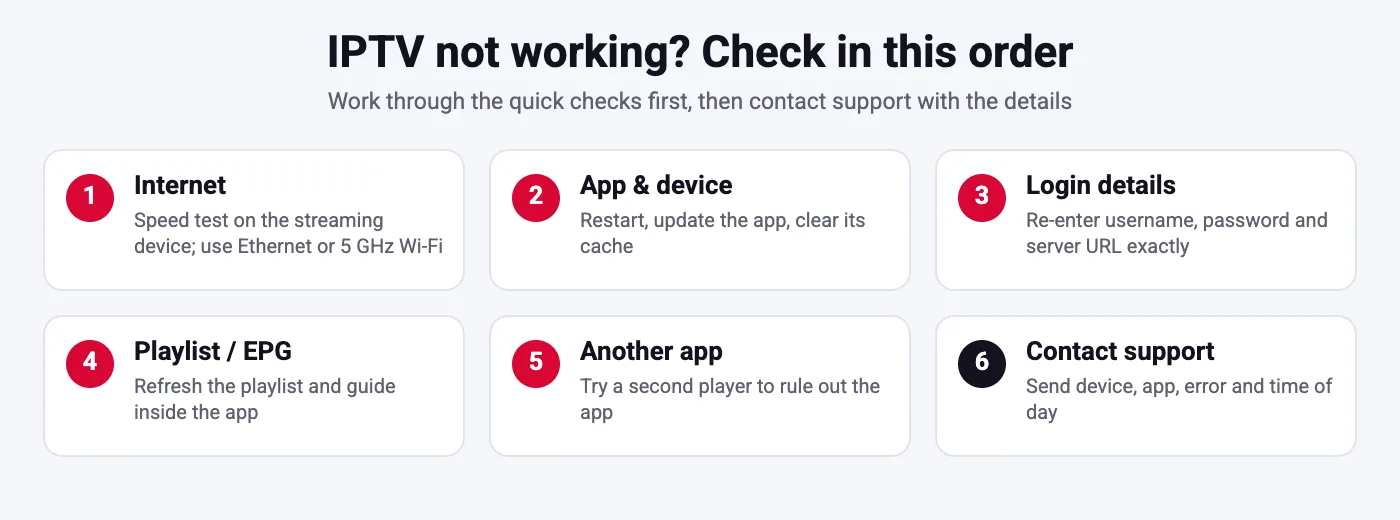
IPTV not working? Step-by-step diagnosis
Step 1: Confirm your internet connection
The most common reason for IPTV not working is the connection itself. Open a website or another streaming app on the same device. If nothing else works either, fix the internet connection first — restart your router or contact your internet provider.
Step 2: Restart the app and the device
Close the player app completely, restart the streaming device, then open the app again. A full restart clears a surprising share of IPTV not working reports. Restart your router too if other devices are also having problems.
Step 3: Confirm your login details
Re-enter the server URL, username and password, or the M3U URL, exactly as your provider sent them, with no extra spaces. Check that your subscription is active and that you are not using more devices at once than your plan allows.
Step 4: Refresh the playlist
Use the app’s reload or update option for the playlist and the TV guide (EPG). If that does not help, remove the playlist and add it again.
Step 5: Test another compatible app
Install a second player that supports your device from the IPTV player app guide and add the same login details. If it works there, the problem is the first app or its settings. Firestick users can follow the Firestick setup guide.
Step 6: Test with or without a VPN
If you use a VPN, disconnect it and test again — the VPN server or route may be the problem. If you are on a network that may restrict streaming, such as a workplace or public Wi-Fi, test on another network. Results differ by network, so test rather than assume.
Step 7: Contact your provider
If the problem continues after steps 1–6, contact your provider. Include the device and app you use, the channels or titles affected, the time it happened, any error code shown, and the result of a speed test.
IPTV not working: fix by symptom
Use this IPTV not working symptom list when you can describe what you see. Each entry lists the most likely cause and what to try first.
Black screen or nothing plays
Likely cause: the stream is not loading, or the player app cannot play it. Try: switch to another channel to see whether only one stream is affected, then open the same channel in another compatible player. If it plays there, the problem is the first app, not your connection. On Fire TV you can clear the app’s temporary files under Settings > Applications > Manage Installed Applications > [app] > Clear cache; on Android TV, under Settings > Apps > [app] > Clear cache.
Login failed or credentials expired
Likely cause: the details do not match exactly, or the subscription has ended. Try: re-enter the server URL, username and password exactly as your provider sent them, with no extra spaces, and confirm that your subscription is still active.
TV guide (EPG) missing
What EPG is: the EPG (electronic program guide) is the on-screen TV schedule. It comes from separate guide data rather than from the video stream, so channels can play normally while the guide is empty.
- Check where your guide data comes from. With an Xtream Codes login, many player apps load the guide together with the playlist. With an M3U playlist, your provider may supply a separate EPG link (often an XMLTV URL), which is usually entered in the player’s playlist or EPG settings. Use only the link your provider gives you.
- Reload the guide. Use the player app’s option to update or refresh the TV guide or the playlist. The name and location of this option vary by app, and a large guide can take a few minutes to load.
- Check the date, time and time zone. In the device’s system settings, make sure the date, time and time zone are correct. A wrong time zone can shift the schedule or make the guide look empty.
- If channels play but show “No information”: those channels may not be matched to guide data, or the provider may not supply guide data for them. Reload the guide once more; if the same channels stay empty, send their names to your provider.
Guide coverage varies by provider and channel: not every channel includes EPG data, so some channels may never show a schedule.
Live TV works but movies or series do not
Likely cause: the on-demand lists have not loaded or refreshed. Try: refresh the playlist so the movie and series categories reload, then test a different title. If only one title fails, report that title to your provider.
Audio out of sync or delayed
Likely cause: the player app, the device or the stream itself. Try, in this order:
- Stop the stream and play it again, or restart the player app.
- Play the same channel in another player app. If the sound is still ahead of or behind the picture there, the stream itself is the likely cause.
- If your player has an audio delay or synchronization setting, adjust it in small steps until speech matches lip movement. In VLC on a computer, press K or J to shift the audio timing, or enter a value in Tools > Track Synchronization (VLC documentation).
- If only one channel or title is affected, report it to your provider: the source may be out of sync.
- If every stream is affected, restart the device and check for player app updates.
Why is IPTV not working today?
If it worked before and nothing changed at home, check in this order: your subscription status and renewal date; whether other apps stream normally on the same device; whether the player app or device updated or restarted; then whether your provider reports an outage. To separate an app problem from a service problem, open your M3U playlist in VLC on a computer (Media > Open Network Stream). If it plays in VLC, the issue is in the player app.
Menu paths: Amazon Fire TV help, Android TV Help, VLC user documentation.
SmartVPro Customers
If you are a SmartVPro customer and this IPTV not working checklist does not solve the problem, contact support through our contact page with the details from step 7.
If you have an account, you can also check which plan and period you ordered under My Account before you write in, and once the problem is solved we would appreciate a short note on the customer reviews page saying which device and app you used – it helps other viewers pick a setup that works. Not a customer yet? The $2 24-hour trial is the easiest way to test the service on your own device and network before buying.
IPTV still not working?
SmartVPro support is available 24/7. Send the device, the app, the exact error and the time it happened.
Frequently Asked Questions
Why is my IPTV not working?
The most common causes are the player app, the internet or home network, the device, incorrect login details, a VPN or routing issue, or a provider-side problem. Check them in that order.
What does error 404 mean on IPTV?
A 404 means the address the app requested was not found. It often points to a mistyped or outdated playlist or server URL. Check the URL and ask your provider for the current one.
What does error 511 mean on IPTV?
A 511 means the network requires sign-in before it allows access, as on many hotel or public Wi-Fi networks. Complete the network sign-in in a browser or try another network. If your network is fine, ask your provider what the code means for its service.
Why does live TV work but movies do not?
The on-demand lists may not have loaded or refreshed, the app may handle them differently, or the provider may have a VOD issue. Refresh the playlist and try another player.
Why is the TV guide (EPG) missing?
The EPG may not be set up, may need refreshing, or may use the wrong address or time zone. Update the EPG in the app and check its settings.