
IPTV Smarters Failed to Authorize: 9 Fixes That Work (2026)
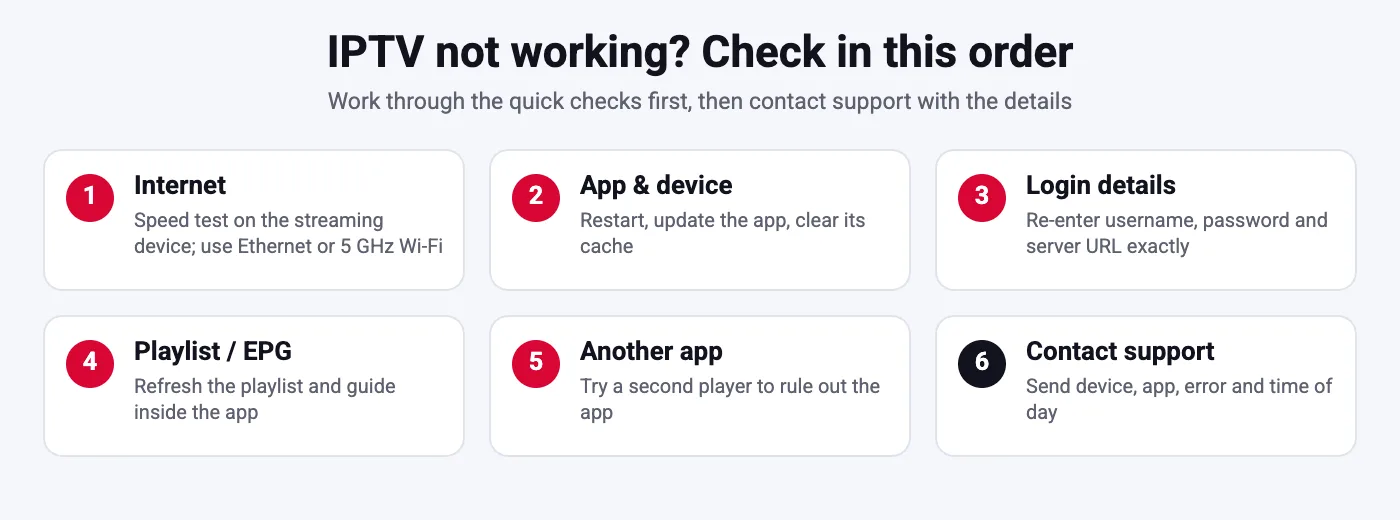
Quick answer: The “IPTV Smarters failed to authorize” message means the app sent your login to the server and the server rejected it. In most cases the cause is a typo in the username, password or server URL, an expired subscription, more devices connected than your plan allows, a VPN or DNS that blocks the server, or an outdated app. Fix it by re-entering the login exactly as your provider sent it, confirming the subscription is active, closing extra devices, turning off the VPN, clearing the app cache and updating IPTV Smarters. If it still fails, the provider server is down or your account was disabled; contact support with a screenshot.
Table of Contents
What “IPTV Smarters failed to authorize” actually means
IPTV Smarters Pro logs in with the Xtream Codes API: it sends your username, password and server URL to the provider, and the server answers with your account status. When the answer is “not authorized”, the app shows the IPTV Smarters failed to authorize error. The app itself is rarely the problem; it is simply reporting what the server said. (see the IPTV overview on Wikipedia for background) That is good news, because it means the fix is almost always on your side or on the provider side, and both are easy to check.
Three things can trigger the message: the server could not find your account (wrong details), the server found it but refused it (expired, disabled or too many connections), or the app never reached the real server at all (wrong URL, VPN, DNS or an outdated app that no longer speaks to the server correctly). The steps below are ordered from most to least likely, so you can stop as soon as the app logs in.
Fix 1: re-enter the username, password and server URL
Nine out of ten IPTV Smarters failed to authorize cases are a typing error. Providers generate logins with mixed-case letters, zeros that look like the letter O and ones that look like lowercase L. Delete the existing user in IPTV Smarters (Settings, Manage Users, Delete) and add it again, copying each field from the message your provider sent.
- Server URL: include http:// or https:// exactly as given, the port number if there is one (for example :8080), and no spaces or trailing slash unless the provider wrote one.
- Username and password: paste them when possible. On a Fire TV Stick, use the Amazon Fire TV app on your phone to type faster and avoid mistakes.
- Login type: choose “Login with Xtream Codes API” for a username and password, or “Load your playlist or file/URL” for an M3U link. Mixing them up produces the same error.
SmartVPro customers receive their details by WhatsApp or email right after payment; if you lost the message, ask support to resend it instead of guessing. The full setup by device is in our IPTV player installation guide.
Fix 2: check that the subscription is active
An expired subscription returns exactly the same IPTV Smarters IPTV Smarters failed to authorize message as a wrong password. Check the date you ordered and the plan length. SmartVPro plans run for 1, 3, 6 or 12 months and never renew automatically, so a plan that ended last week simply stops working until you order again. The $2 trial lasts 24 hours from activation and then expires, which is the most common reason trial users see this error on day two.
If you are not sure, message support with your username; they can see the expiry date in seconds. Renewing takes a few minutes on the plans page and the same login usually starts working again immediately.
Fix 3: close extra devices (too many connections)
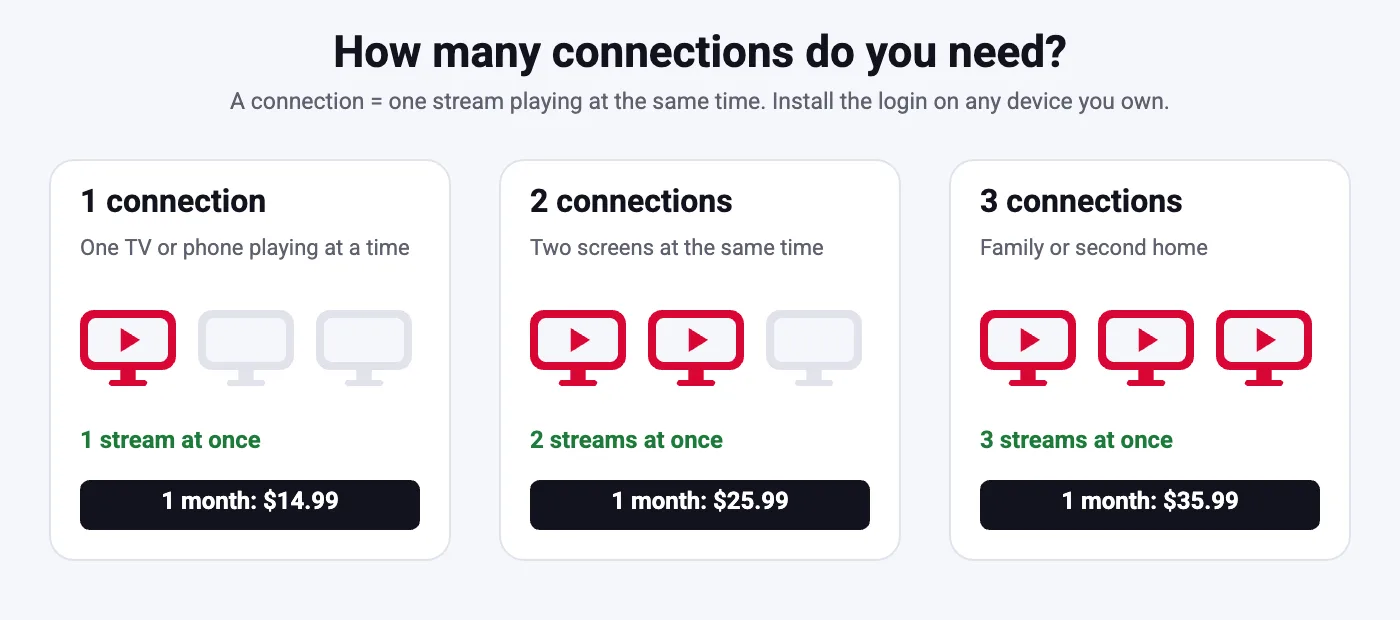
Every plan allows a fixed number of simultaneous connections: 1, 2 or 3 at SmartVPro. If your phone is still streaming in the background while you open IPTV Smarters on the TV, the server may refuse the new login and the app reports IPTV Smarters failed to authorize. Close the app on every other device, wait one minute and try again. Sharing your login with friends causes the same symptom and may get the account disabled.
If your household genuinely needs more screens, upgrade to a 2- or 3-connection plan; it is cheaper than a second account and avoids this error completely. Our guide to IPTV on multiple devices explains how connections are counted.
Fix 4: turn off the VPN, proxy or custom DNS
VPNs are useful for privacy, but some VPN servers are blocked by IPTV providers or route traffic through countries where the server refuses connections. If IPTV Smarters failed to authorize appears only when the VPN is on, switch the VPN server to a US location or disable the VPN for the IPTV app (split tunneling). The same applies to ad-blocking DNS such as Pi-hole or AdGuard, which sometimes block the provider domain by mistake; whitelist the server URL or switch the device back to automatic DNS.
Not sure whether you need a VPN at all? Read our article on VPN for IPTV before you pay for one.
Fix 5: clear the IPTV Smarters cache and data
A corrupted cache can keep an old, wrong login in memory even after you edit it. On Fire TV Stick and Android TV go to Settings, Applications, Manage Installed Applications, IPTV Smarters Pro, then Clear cache and Clear data. On Android phones use App info, Storage. On iPhone and Apple TV delete and reinstall the app. After clearing data you will need to add the user again, so keep the login message at hand.
Fix 6: update or reinstall the app
Old versions of IPTV Smarters occasionally stop talking to updated provider servers, and the result is a IPTV Smarters failed to authorize message even with correct details. Check for updates in the store you installed from (Amazon Appstore, Google Play, App Store or the provider APK). If you sideloaded an APK on Firestick, download the current version from the developer site and install it over the old one; your users are kept. Alternatively, test the same login in a second player such as TiviMate or IBO Player. If the second app logs in, the problem is the IPTV Smarters install, not your account.
Fix 7: check the date, time and internet on the device
Secure (https) server URLs are rejected when the device clock is wrong, because the certificate looks invalid. Set the date and time to automatic in the device settings. Also confirm the device is actually online: open YouTube or a browser. Weak Wi-Fi can make the login time out, which some versions of IPTV Smarters report as a failed to authorize error instead of a network error. Move closer to the router or use 5 GHz. If streams later stutter, follow our IPTV buffering fix.
Fix 8: the provider server is down or changed
Providers sometimes move to a new server URL or have a short outage. If your login worked yesterday and nothing changed on your side, wait 15 minutes and try again, then message support to ask whether the server URL has changed. Reputable providers announce changes by email or WhatsApp; SmartVPro support is available 24/7 and will send a fresh URL if needed. A provider that cannot be reached at all during an IPTV Smarters failed to authorize problem is a warning sign; our guide on how to choose an IPTV provider lists the others.
Fix 9: the account was disabled
Accounts are disabled for sharing logins, using the service in a way that breaks the terms, or a payment that was reversed. In that case every fix above fails and IPTV Smarters failed to authorize stays on screen. Contact support with your username and a screenshot of the IPTV Smarters failed to authorize screen; they will tell you why and what to do. If you suspect you bought from a reseller who has disappeared, read our guide on how to tell if an IPTV service is legitimate before paying anyone again.
IPTV Smarters failed to authorize on Firestick, Android, iPhone and Smart TV
The error is the same on every platform, but the fix location differs. On Fire TV Stick, clear cache under Manage Installed Applications and use the Fire TV phone app for typing. On Android TV and Google TV, check that the app has network permission and that a Google DNS or VPN app is not interfering.
On iPhone, iPad and Apple TV, delete and reinstall IPTV Smarters from the App Store and re-add the user. On Samsung and LG Smart TVs, IPTV Smarters is not always available; many users run IBO Player or Smart IPTV instead, which show “wrong credentials” or “playlist not found” for the same causes. Our Firestick IPTV guide covers the Amazon side in detail.
| Symptom | Most likely cause | Fix |
|---|---|---|
| Error on first login | Typo in login or server URL | Fix 1 |
| Worked before, stopped today | Expired plan or server change | Fix 2 and 8 |
| Error only on the second TV | Too many connections | Fix 3 |
| Error only with VPN on | Blocked VPN server | Fix 4 |
| Works in TiviMate, not in Smarters | App cache or old version | Fix 5 and 6 |
| Error on https URL only | Wrong device date or time | Fix 7 |
How to avoid IPTV Smarters failed to authorize in the future
Save the login message from your provider in a notes app, set a reminder a few days before your plan ends, keep IPTV Smarters updated, and do not share the login. If you test a new provider, use the $2 24-hour trial on the device you will actually use; it is the quickest way to confirm the login, the server and the channels work on your network before you buy a 12-month plan. And if anything still fails, SmartVPro support answers on WhatsApp and email around the clock, usually within minutes.
Error messages that mean the same as IPTV Smarters failed to authorize
Different versions of IPTV Smarters and different providers word the problem differently, but the cause and the fix are the same as for the IPTV Smarters failed to authorize error. “Invalid username or password”, “Your account has expired”, “Unable to connect to server”, “Authentication failed”, “User not found” and “No connections available” are all server replies to the same login request. When you see any of them, start again at Fix 1 and move down the list. One exception: “Playlist not found” or a 404 error usually means the server URL or M3U link itself is wrong or outdated, so focus on the address rather than the password.
Also note the difference between a login error and a playback error. If the app shows categories and channel names but nothing plays, you are authorized; the problem is the stream, the player engine or your network, and our IPTV not working guide is the better place to look. If you never get past the login screen, this page is the right one.
Checklist to send to support
When you contact your provider, a complete message gets the account fixed in one reply instead of five. Include: your username (never share the password in a public forum), the device and app version, the exact error text or a screenshot, whether a VPN is on, how many devices are in use, and when the login last worked.
SmartVPro support reads WhatsApp and email 24/7; most IPTV Smarters failed to authorize tickets are solved within minutes because the answer is usually an expired plan, a changed server URL or a second device still streaming. If you are testing SmartVPro for the first time, the $2 trial comes with the same support, so you can confirm your device and app work before buying a longer plan.
- Username and the device you are using
- Exact wording of the error or a photo of the screen
- VPN on or off, Wi-Fi or Ethernet
- Other devices currently streaming
- Order date and plan length
Why IPTV Smarters failed to authorize is more common on trials and renewals
Support teams see a spike in IPTV Smarters failed to authorize reports at two moments: the day after a trial starts and the week a plan ends. Trials are short on purpose, so an account that worked last night is simply closed this morning; that is expected, not a bug.
Renewals cause the error when the new order is placed under a different email or name, which creates a second account instead of extending the first. If your old login stops working right after you paid again, send both the old username and the new order number to support so the two can be merged or the correct login resent. Keeping one email address for every order avoids the problem entirely, and SmartVPro customers can check their order history in My Account at any time.
Frequently Asked Questions
Why does IPTV Smarters say failed to authorize?
The server rejected your login. The usual causes are a typo in the username, password or server URL, an expired subscription, too many devices connected at once, a VPN or DNS blocking the server, or an outdated app.
How do I fix IPTV Smarters failed to authorize on Firestick?
Delete the user in IPTV Smarters, clear the app cache under Settings, Applications, then add the user again by copying the login exactly. Turn off any VPN, check the plan is active and update the app from the Amazon Appstore.
Does failed to authorize mean my subscription expired?
Often, yes. An expired or not yet activated plan returns the same message as a wrong password. Check your order date and plan length, or ask support for the expiry date.
Can a VPN cause the IPTV Smarters failed to authorize error?
Yes. Some VPN servers are blocked or route through regions the provider refuses. Switch to a US VPN server or disable the VPN for the IPTV app and try again.
The login works in TiviMate but not in IPTV Smarters. Why?
Your account is fine; the IPTV Smarters install is the problem. Clear its cache and data, update it, or reinstall it and add the user again.
Who do I contact if nothing works?
Your provider. SmartVPro support is available 24/7 on WhatsApp and email; send your username and a screenshot of the error and they will check the account and server for you.
Still seeing IPTV Smarters failed to authorize?
Send us your username and a screenshot on WhatsApp. Support is available 24/7, and new users can test SmartVPro for 24 hours with the $2 trial.